

Reference data
concept Explains how something works
On this page
- Add a reference data set
- Link a vocabulary key to a reference data set
- Monitor flagged records
- Remove a reference data set
Reference data is a known-good list of values - such as country codes or currency codes - that you can link to one or more vocabulary keys to validate the values golden records actually hold against it. Once a vocabulary key is linked, CluedIn checks the records that use it against the reference list and flags the ones whose value is missing or doesn’t match, so you can see and fix data quality issues at a glance.
With the Reference Data module, you can do the following:
-
Add a reference data set from the built-in catalog, or by uploading a file.
-
Link a vocabulary key to a reference data set to validate and monitor its values.
-
Monitor flagged records and review which golden records don’t match the reference data.
This is a new module. “From Database” and “From Ingestion Point” are shown as menu options for parity with the design, but connecting a live database or ingestion point as a reference data source is not yet implemented - use From Catalog or From Files for now. Likewise, the Fix with AI button on the Monitoring tab is a placeholder for upcoming AI-assisted remediation.
Add a reference data set
To add a reference data set from the catalog
-
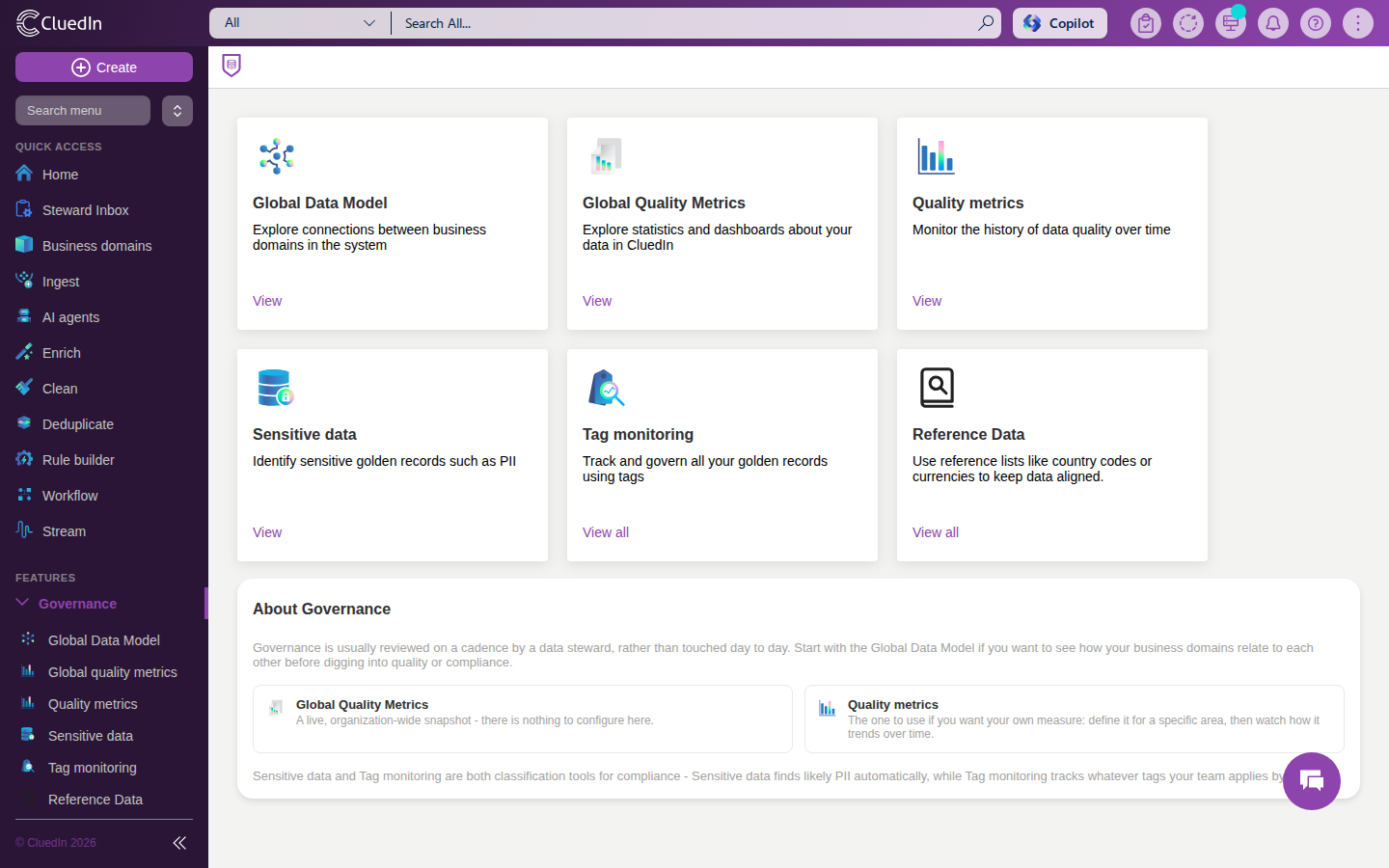
On the navigation pane, go to Governance > Reference Data.
-
Select Add Reference Data, and then select From Catalog.
-
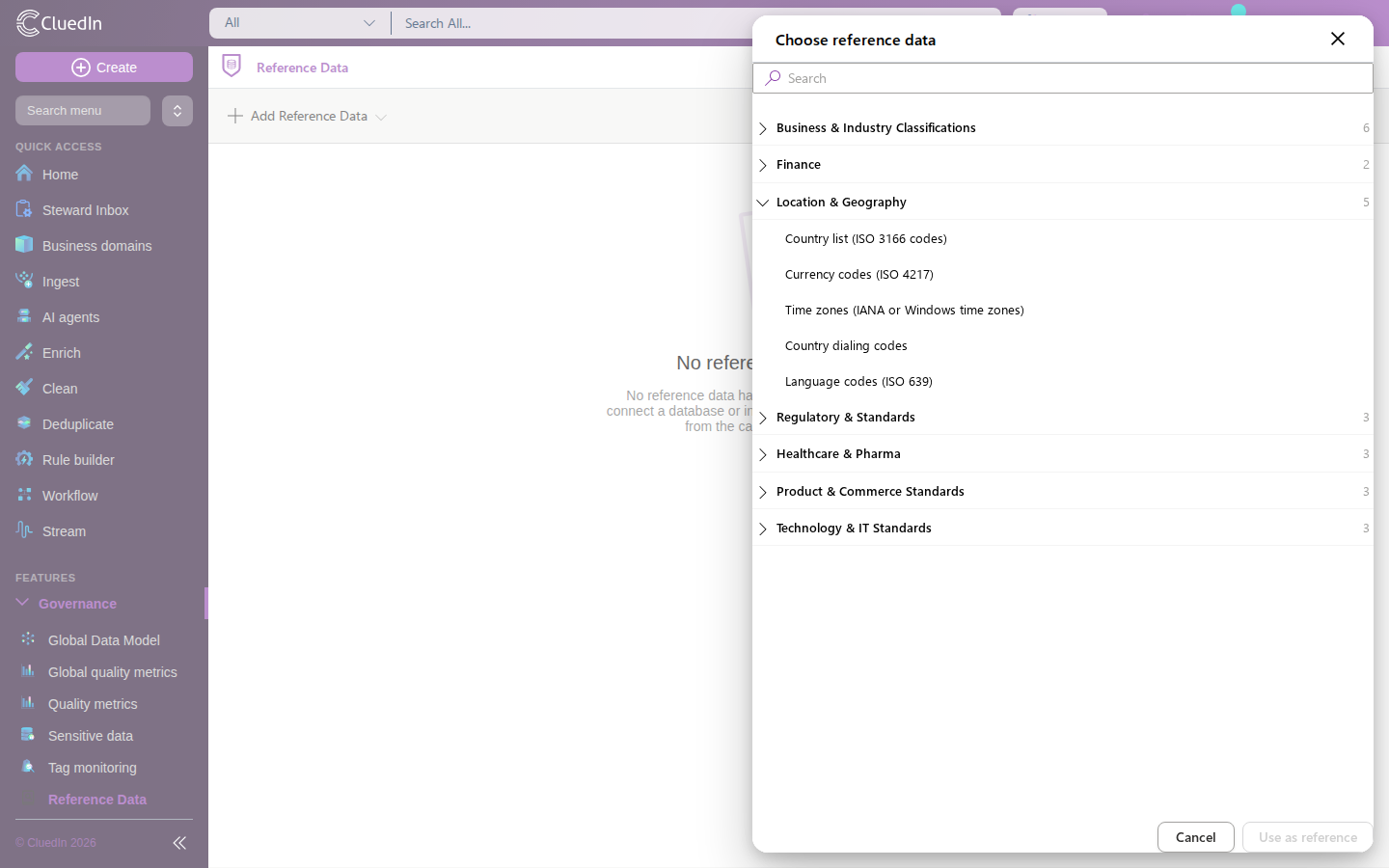
On the Choose reference data panel, expand a category, select the reference list you want to use, and then select Use as reference.
The catalog’s Location & Geography category currently ships with five ready-to-use lists: ISO 3166 country codes, ISO 4217 currency codes, IANA time zones, country dialing codes, and ISO 639 language codes. Other categories shown in the catalog (Business & Industry Classifications, Finance, Regulatory & Standards, Healthcare & Pharma, Product & Commerce Standards, Technology & IT Standards) are listed for parity with the design but marked Coming soon - their specific contents still need product owner sign-off.
You are taken to the new reference data set’s Data tab, which shows its rows (for example, every ISO 3166 country with its alpha-2, alpha-3, and numeric codes).
To add a reference data set from a file
-
On the navigation pane, go to Governance > Reference Data.
-
Select Add Reference Data, and then select From Files.
-
Enter a name and, optionally, a description, then upload a CSV file. The first row of the file is used as the column headers.
-
Select Add.
Link a vocabulary key to a reference data set
Linking a vocabulary key to a reference data set is what turns a static list into an active data quality check: CluedIn starts validating the golden records that use that key against the reference data’s values.
To link a vocabulary key
-
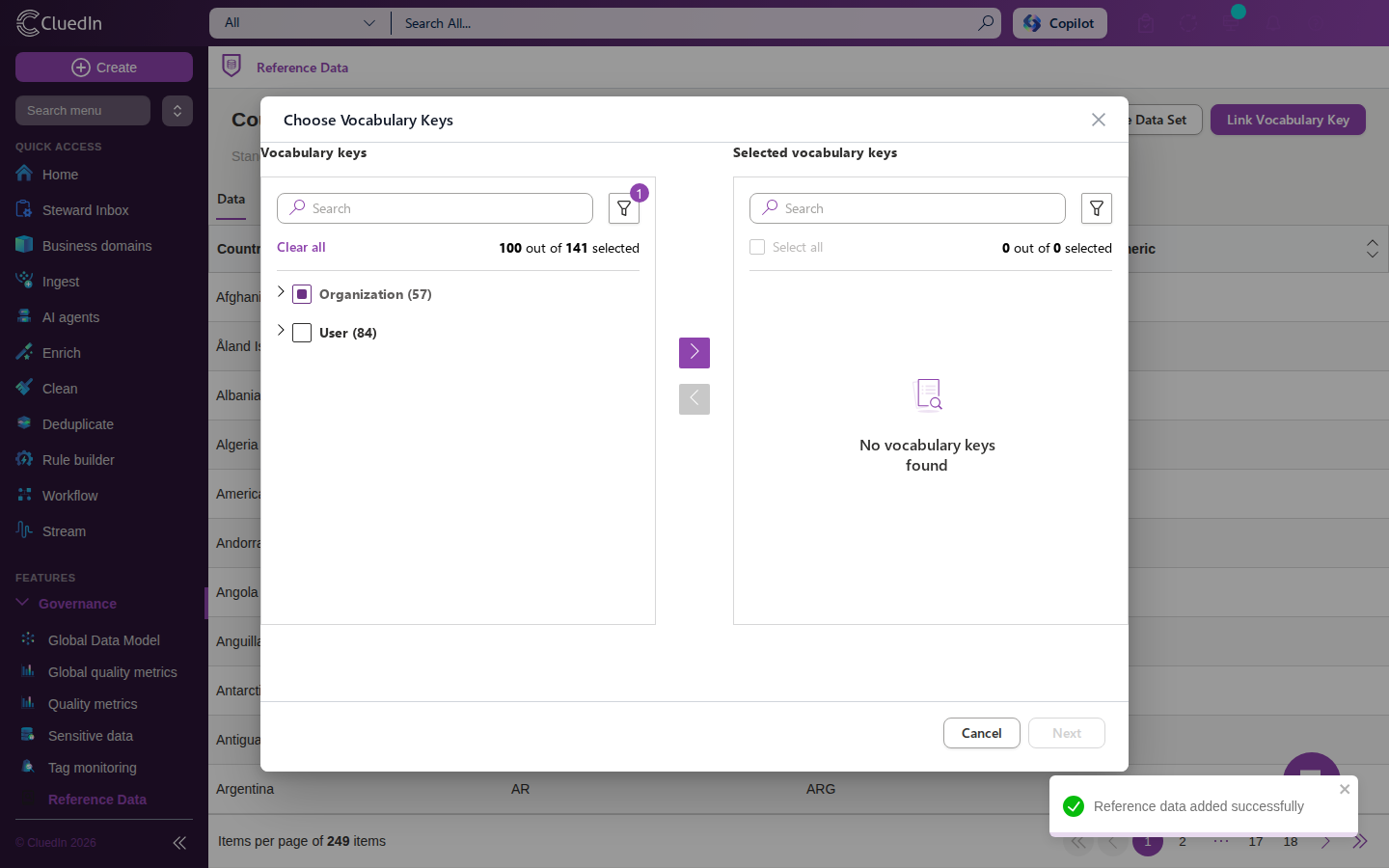
On a reference data set’s page, select Link Vocabulary Key.
-
On the Choose Vocabulary Keys panel, select the vocabulary keys you want to validate against this reference data, then select Next.
-
Turn tracking on or off for the selected keys. Tracking enables background validation and is what makes the key’s results appear on the Monitoring tab.
-
Select Link & Reprocess.
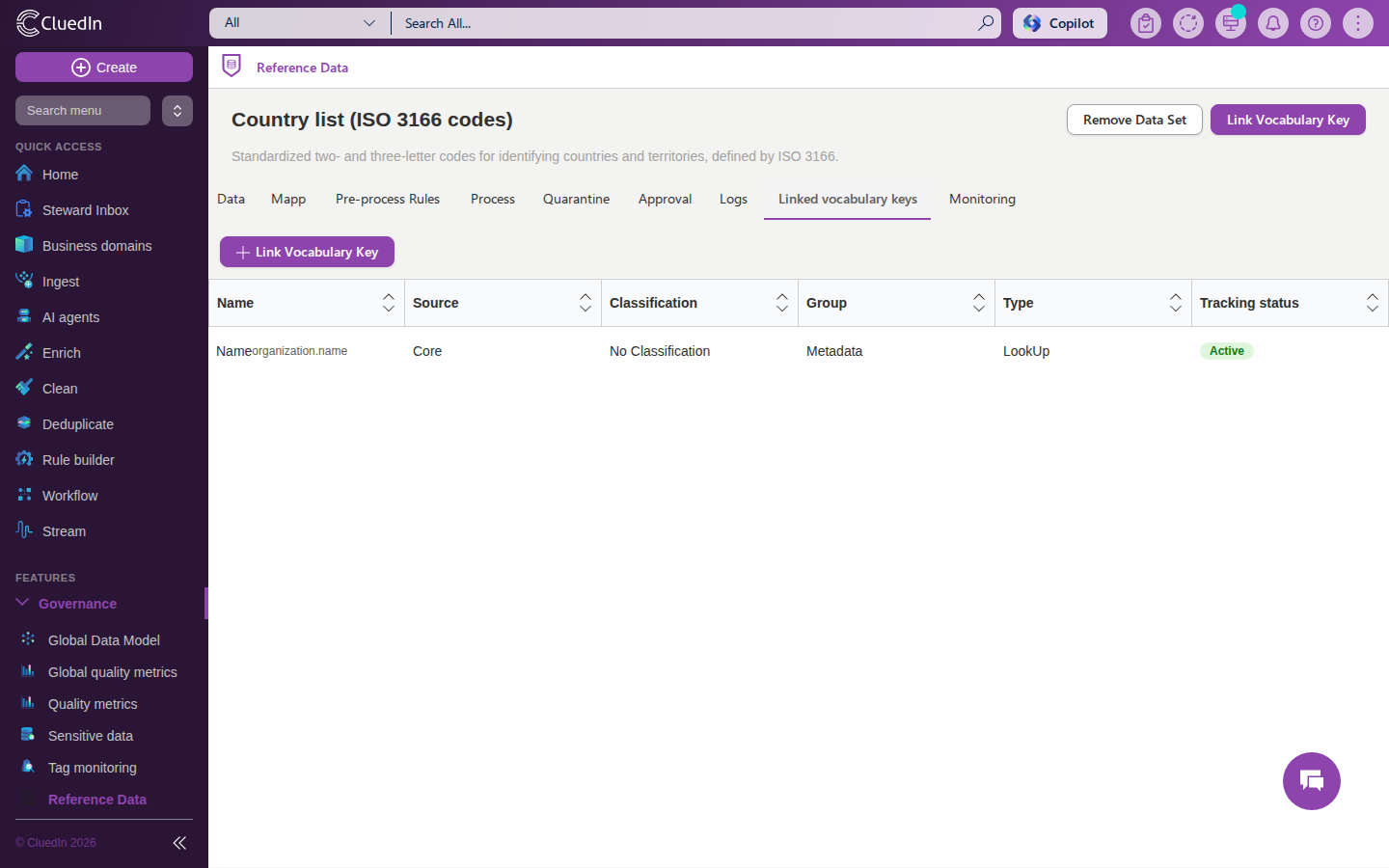
CluedIn links the keys and runs an initial validation pass. When it’s done, the keys appear on the Linked vocabulary keys tab with an Active (or Paused) tracking status.
Monitor flagged records
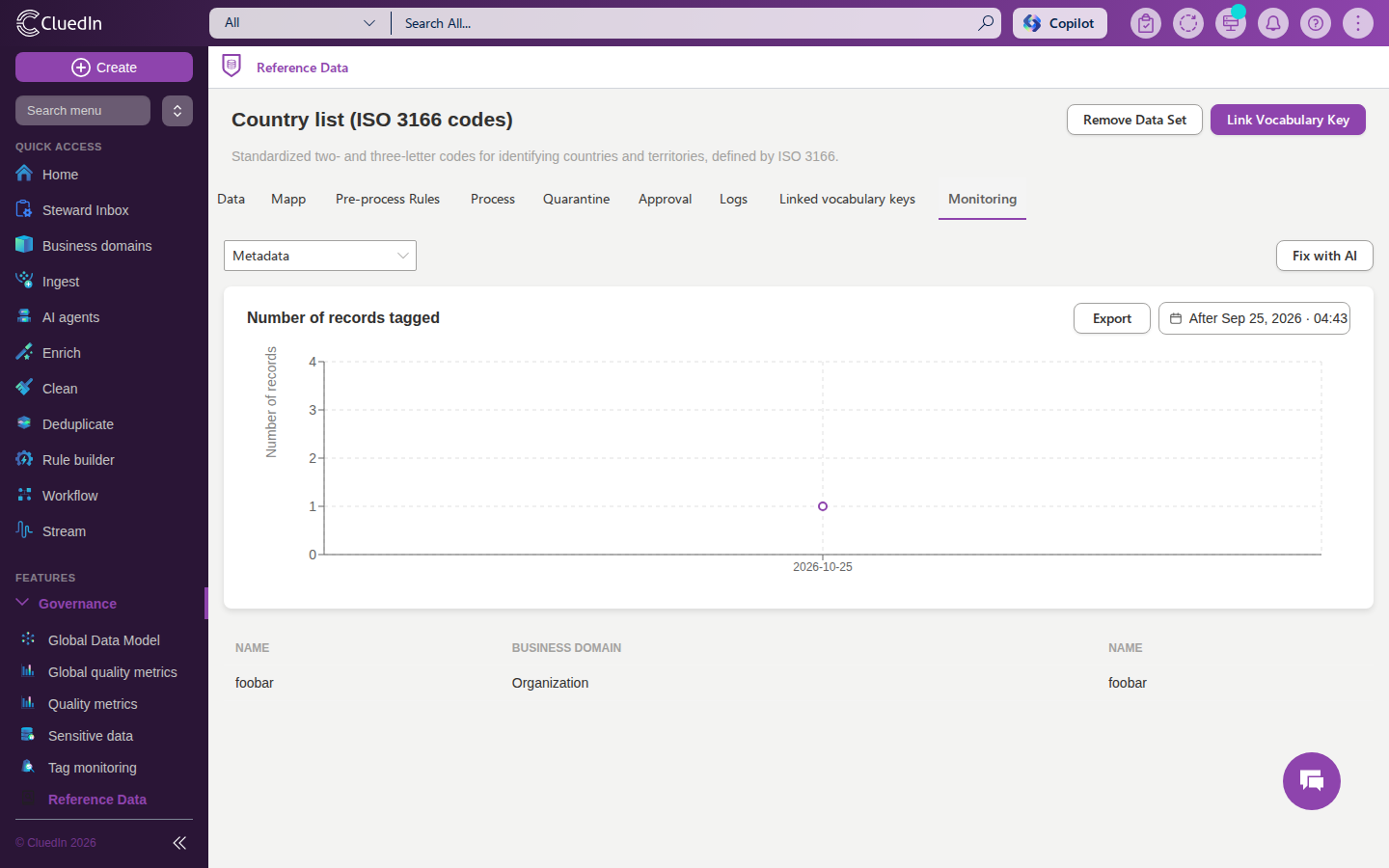
Once a vocabulary key is linked with tracking enabled, the Monitoring tab shows how many golden records currently have a value that doesn’t match the reference data, and lists those records.
To review flagged records
-
On a reference data set’s page, go to the Monitoring tab.
-
Select the linked vocabulary key you want to review, if more than one is linked.
-
Review the Number of records tagged chart. It shows, for the selected date range, how many records were flagged on each day tracking ran.
-
Below the chart, review the list of flagged records - their name, business domain (entity type), and the value that didn’t match the reference data.
A validation pass checks up to the first 1,000 most-relevant golden records of the linked key’s entity type, and reruns whenever you open the Monitoring tab or link a key - rather than on a recurring schedule against the organization’s complete data set. For very large data sets, treat the flagged count as a strong sample, not an exact total.
Remove a reference data set
To remove a reference data set
-
On the navigation pane, go to Governance > Reference Data.
-
Select the reference data set you want to remove.
-
Select Remove Data Set, and then confirm the removal.
Removing a reference data set also removes its linked vocabulary keys and validation history. It does not change the golden records or vocabulary keys themselves.